Closing an Employee Account
Permanently close an employee's account when they leave the organization.
How to Close an Employee Account
1
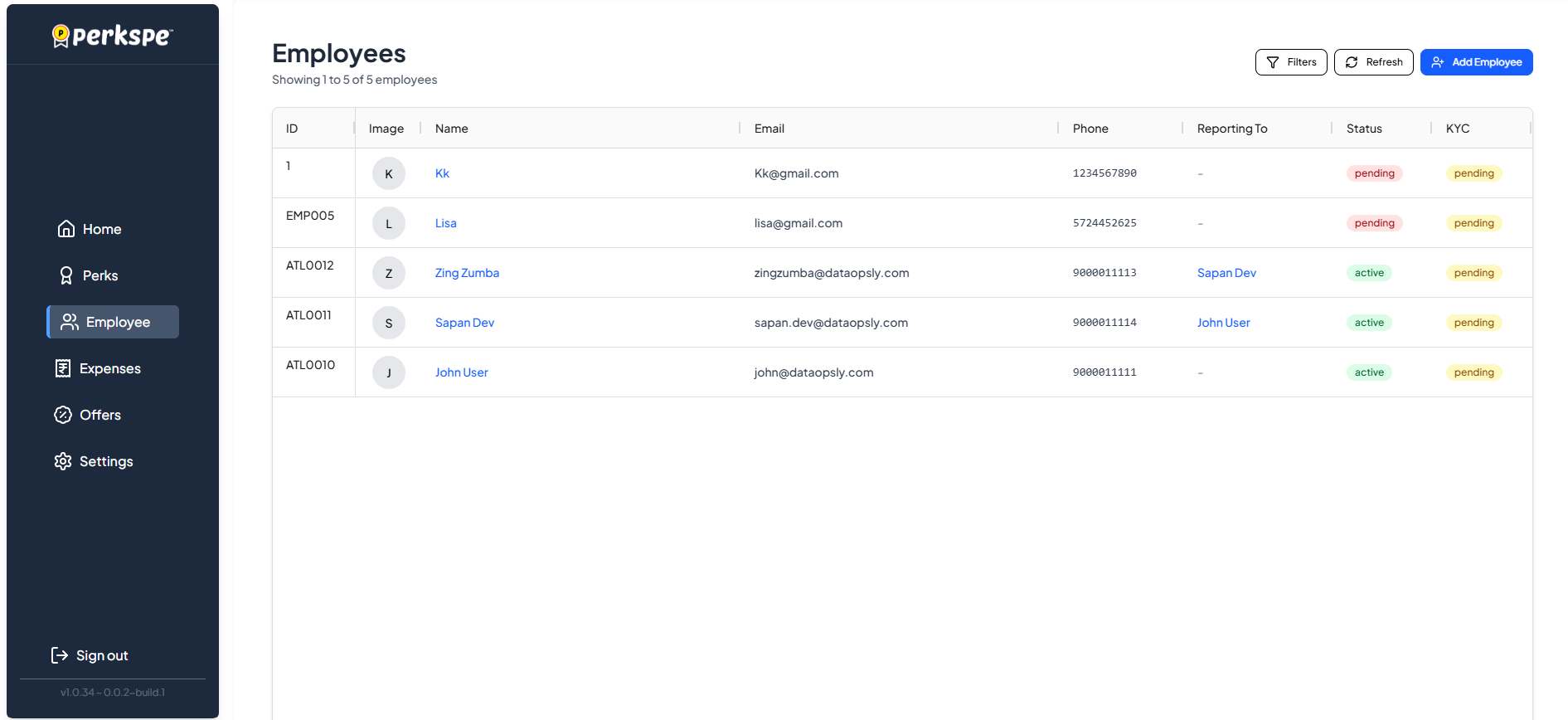
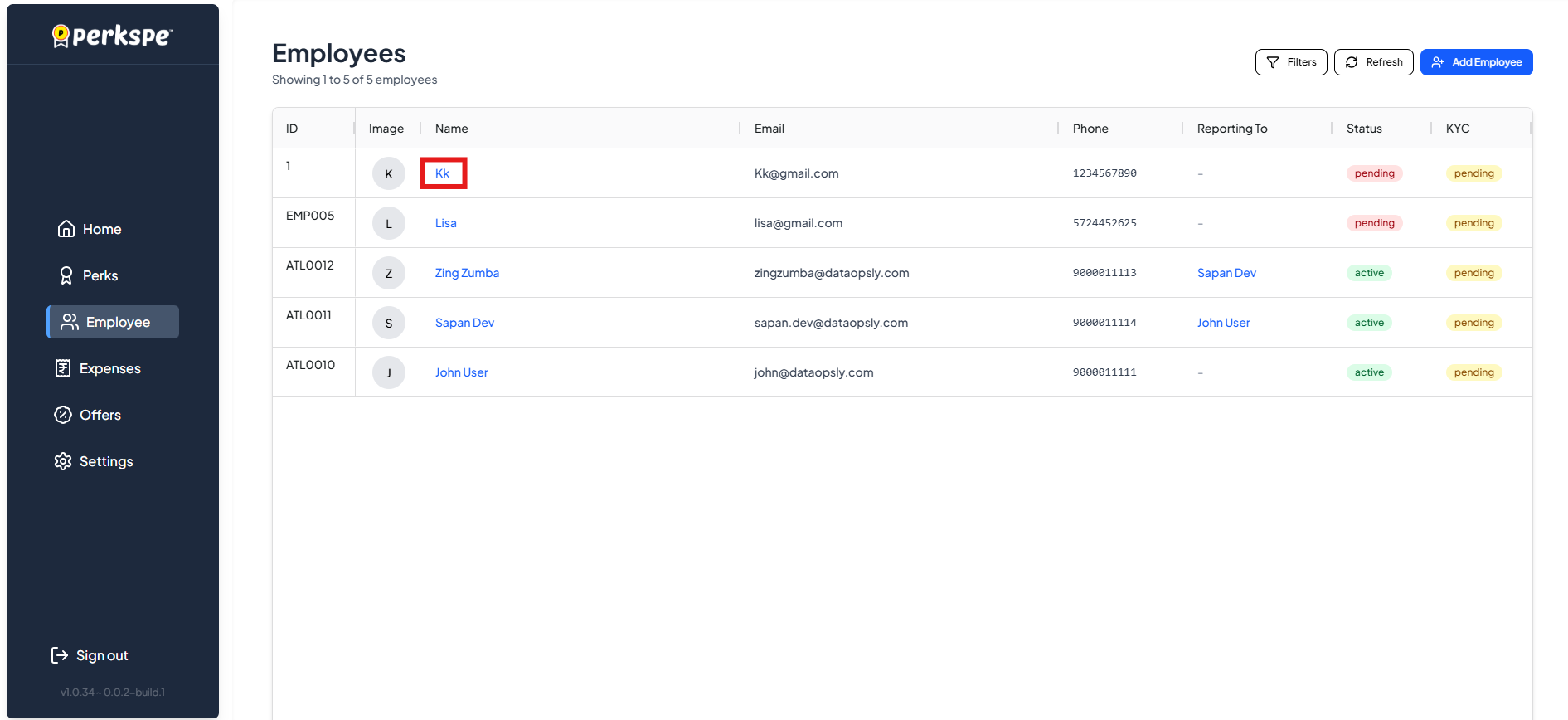
Select EmployeeGo to Employees and click on the employee whose account you want to close.
2
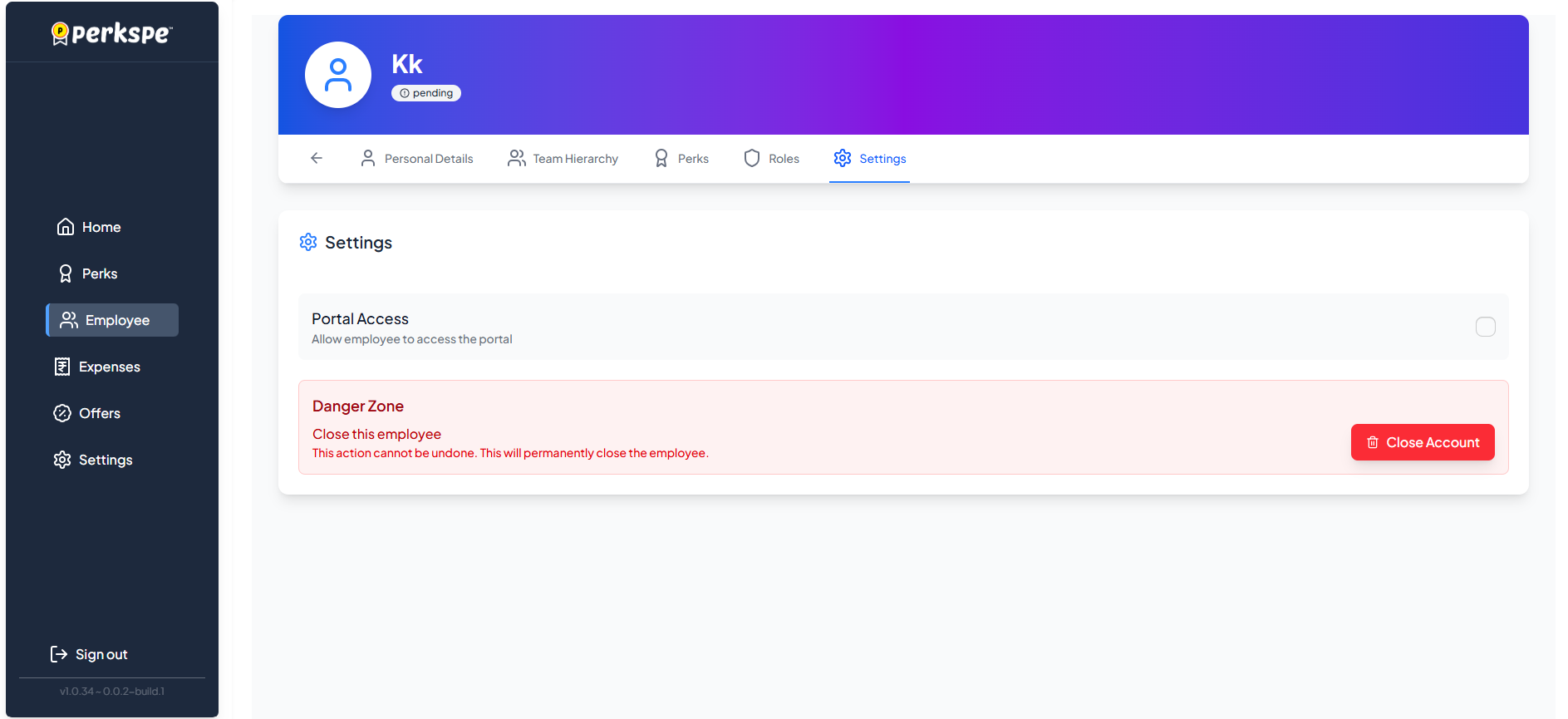
Go to SettingsClick the Settings tab on the employee's profile and scroll to the Danger Zone.
3
Close AccountClick Close this employee and complete the two-step confirmation process.
The Confirmation Process
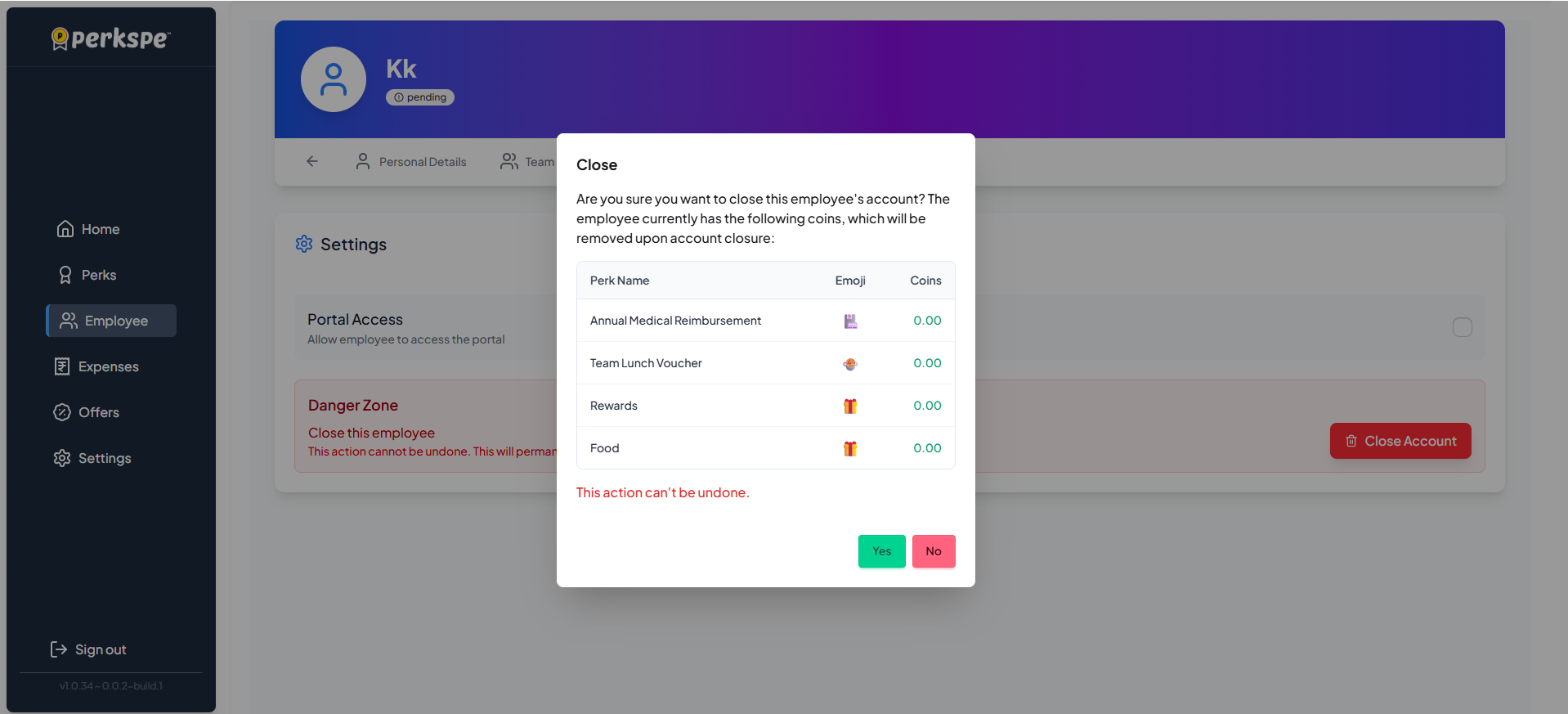
Because closing an account is permanent, there is a two-step confirmation process.
First Confirmation: Review the warning showing the employee's current PEP Coin balances that will be permanently removed. Click Confirm to proceed.
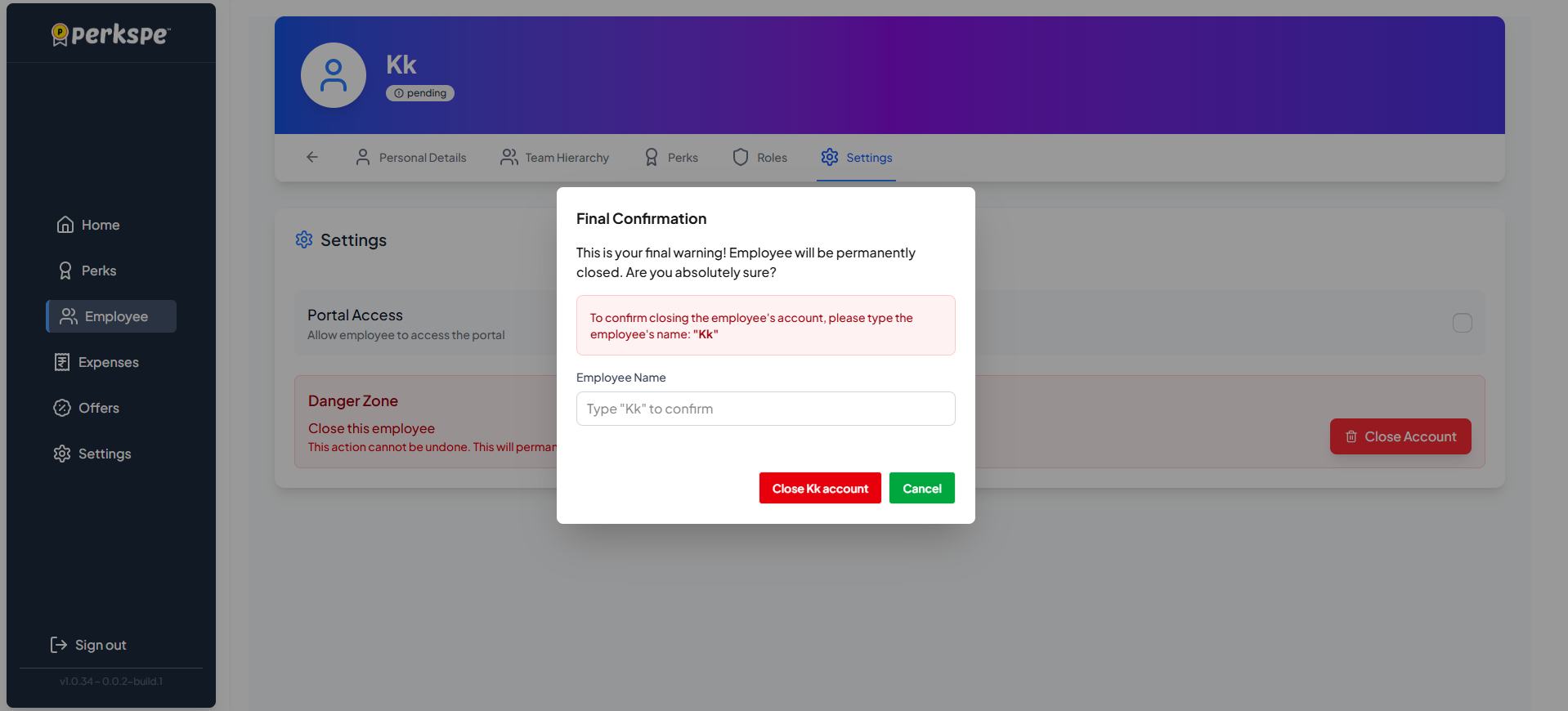
Final Confirmation: Type the employee's full name in the confirmation field to unlock the final close button.
After Closing
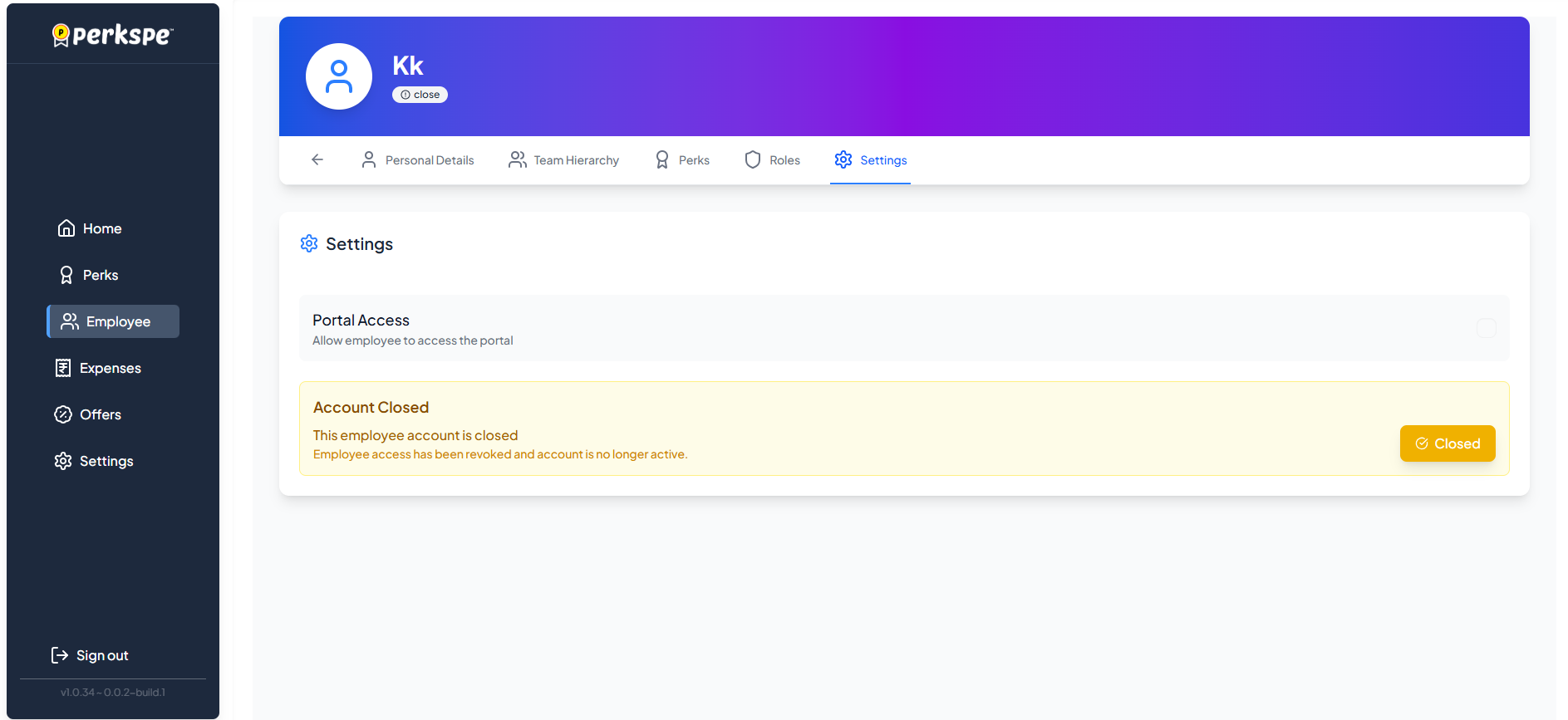
Once closed, the employee's profile shows:
🔒
Status Change
The status in the profile header changes to Closed.
🚫
Access Revoked
The Settings page displays a prominent "Account Closed" message.
Pause vs Close
If an employee is leaving temporarily (e.g., on leave), consider pausing their perks instead of permanently closing their account.