Draft or Submit
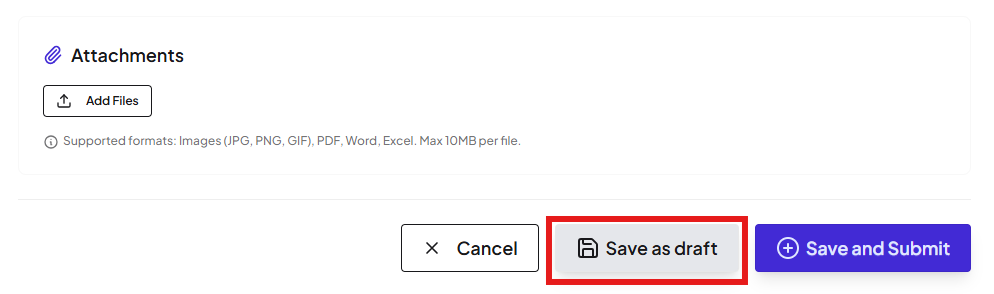
After entering your expense details, you have two options: save as a draft or submit for approval.
Your Two Options
💾
Save as Draft
Save incomplete entries to finish later. Only visible to you.
📤
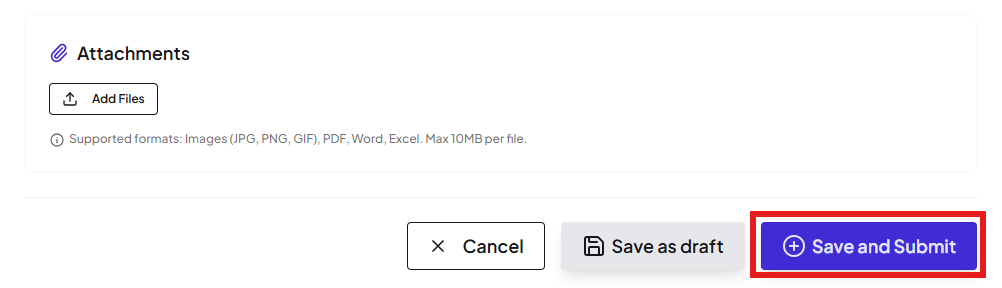
Save and Submit
Finalize and send to approvers. Visible to Managers & Finance.
Option 1: Save as Draft
Save incomplete expense entries to finish later. Use drafts when you don't have all details yet, are waiting for receipts, or want to review before submitting.
How to View and Edit Your Drafts
1
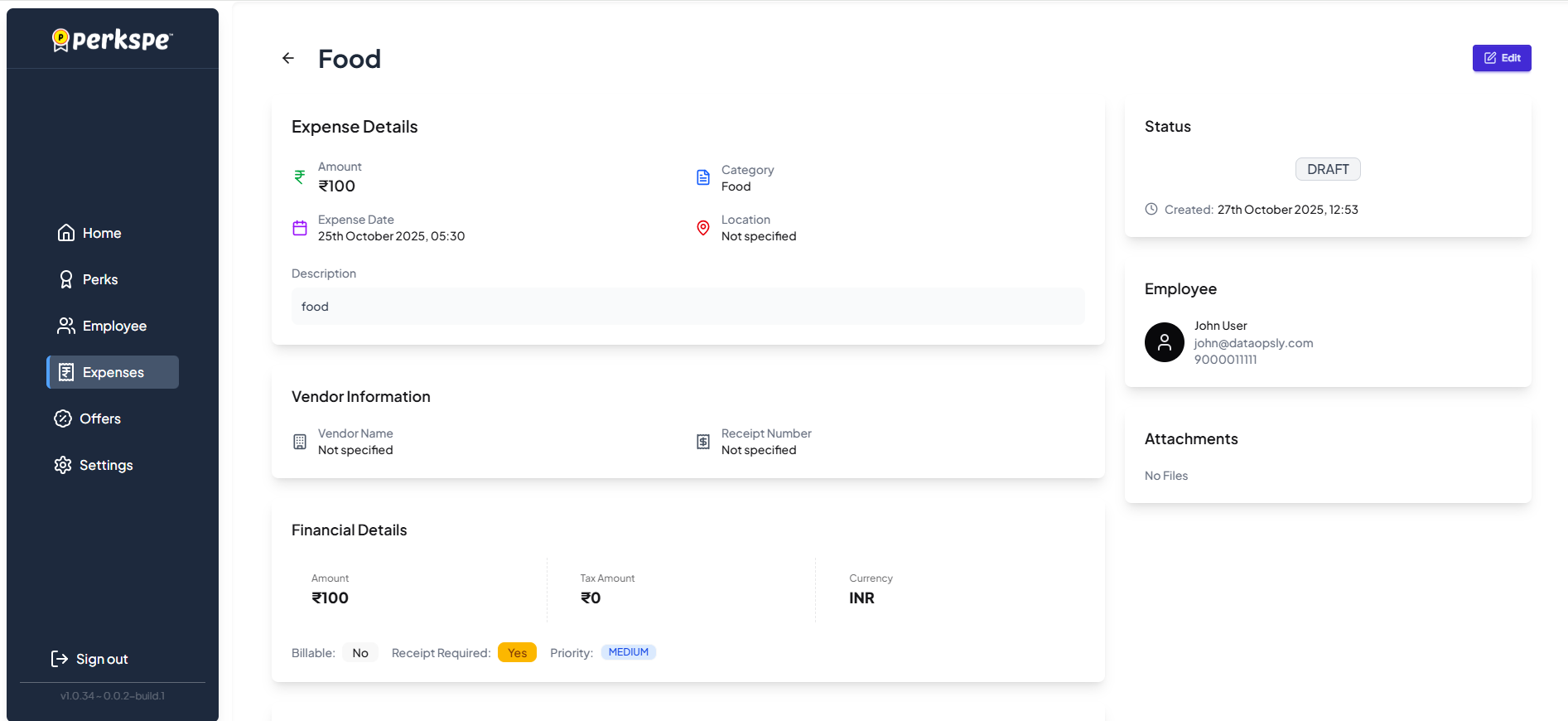
View DraftsGo to Expenses, click Actions, and select View Drafts.
2
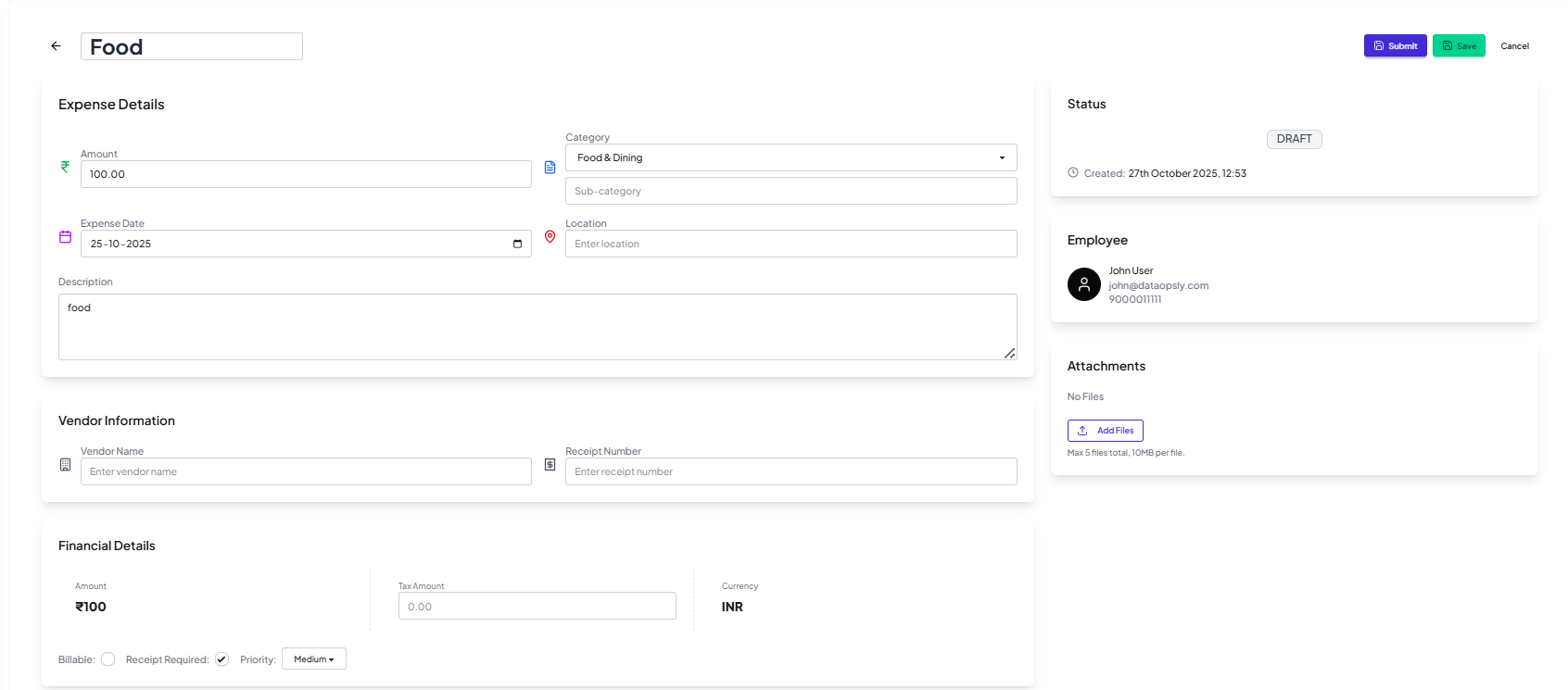
Edit DraftOpen the draft and click the Edit button (top right).
3
SubmitUpdate fields and click Submit to send for approval.

Option 2: Save and Submit
Finalize your expense and send it directly to the approval workflow.
What Happens After Submission?
Your expense goes to your selected approver, who can:
✅
Approve
Expense accepted, reimbursement processing begins.
❌
Reject
Expense declined with a reason.
You'll be notified of their decision.