Closing an Employee Account
Permanently close an employee's account when they leave the organization.
Before You Close
This action cannot be undone. Closing an account will:
- Permanently deactivate the employee's access
- Remove all their PEP Coin balances
- Revoke portal login access
How to Close an Employee Account
Step 1: Go to Employees
From the sidebar, click Employees.
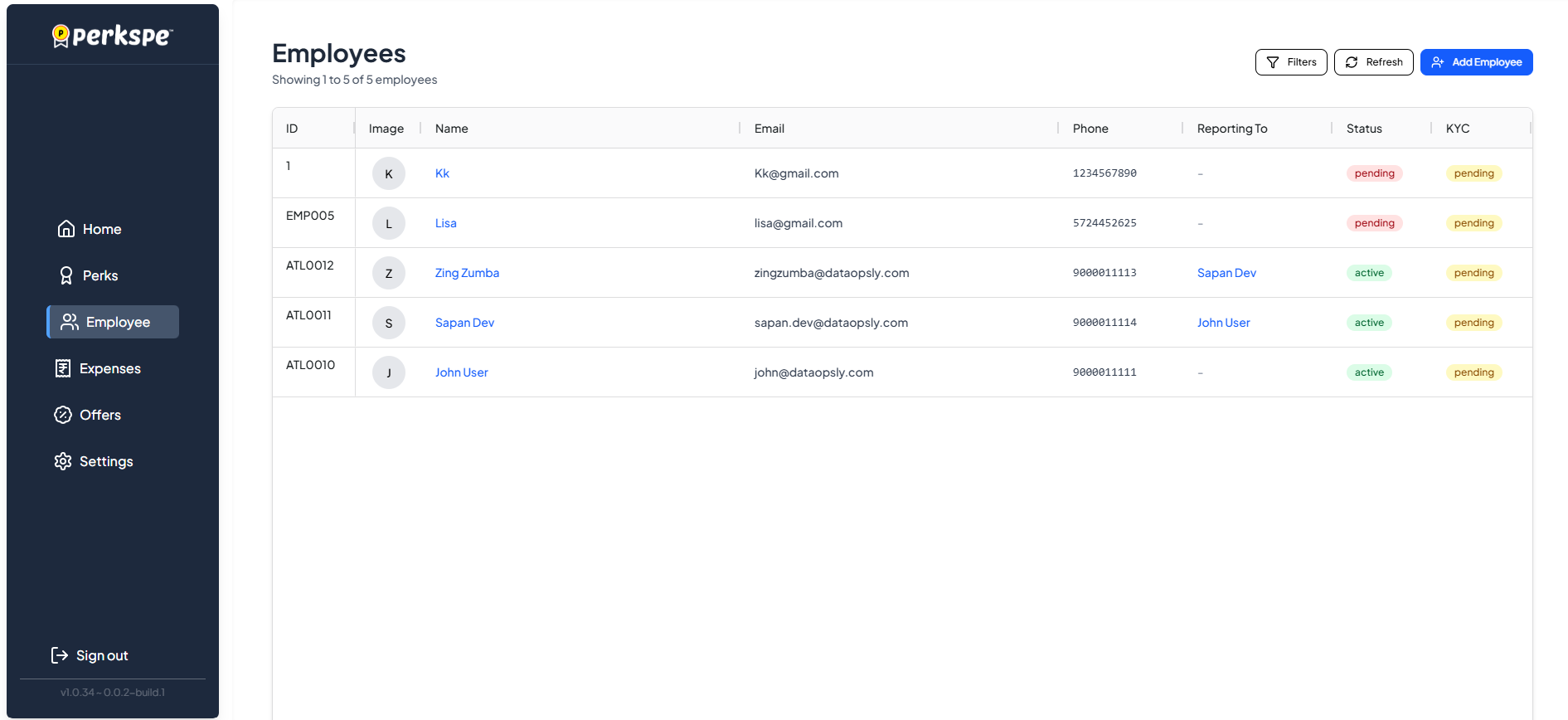
Step 2: Select the Employee
Click on the employee whose account you want to close.
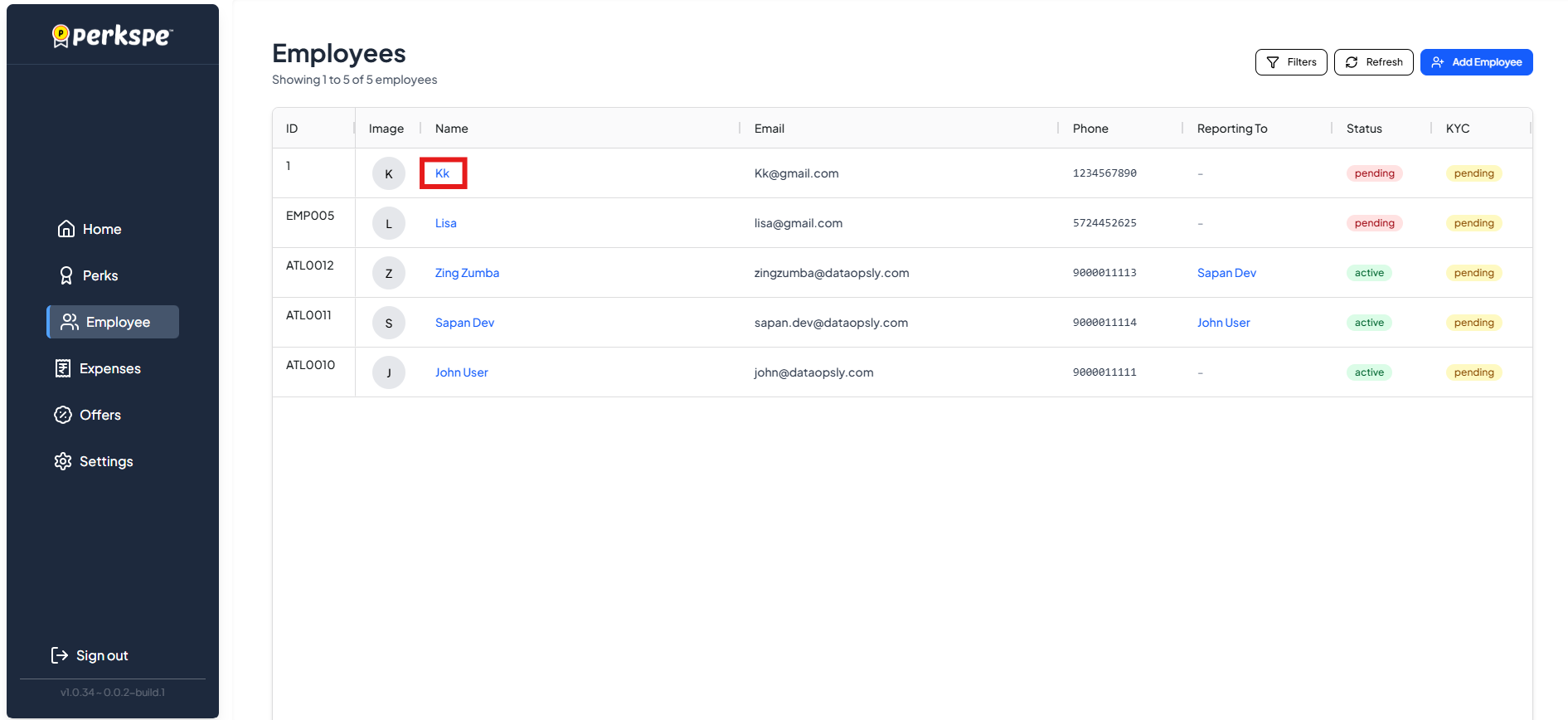
Step 3: Go to Settings Tab
Click the Settings tab on the employee's profile.
Step 4: Find the Danger Zone
Scroll down to the Danger Zone section.
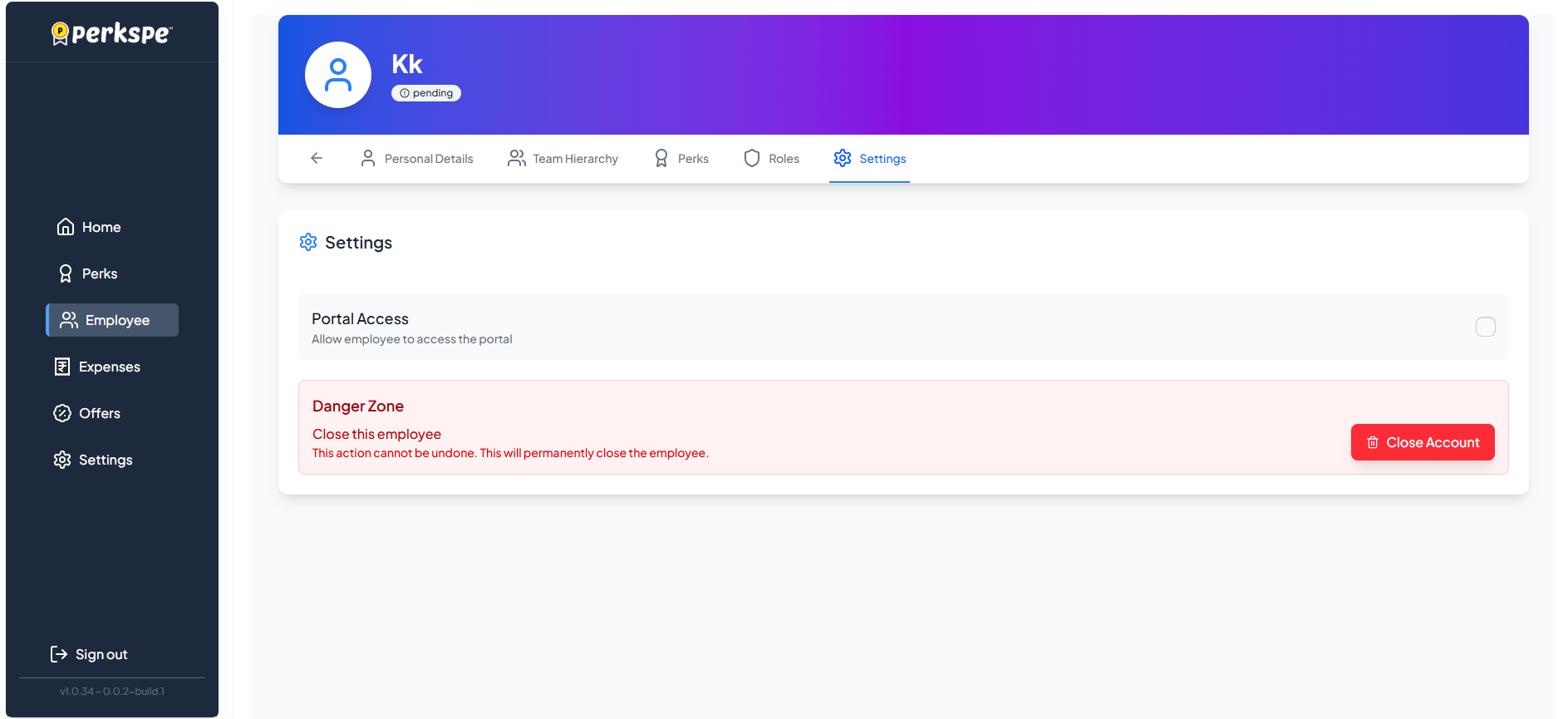
You'll see the option: Close this employee
Step 5: First Confirmation
Click Close this employee. A warning popup appears:
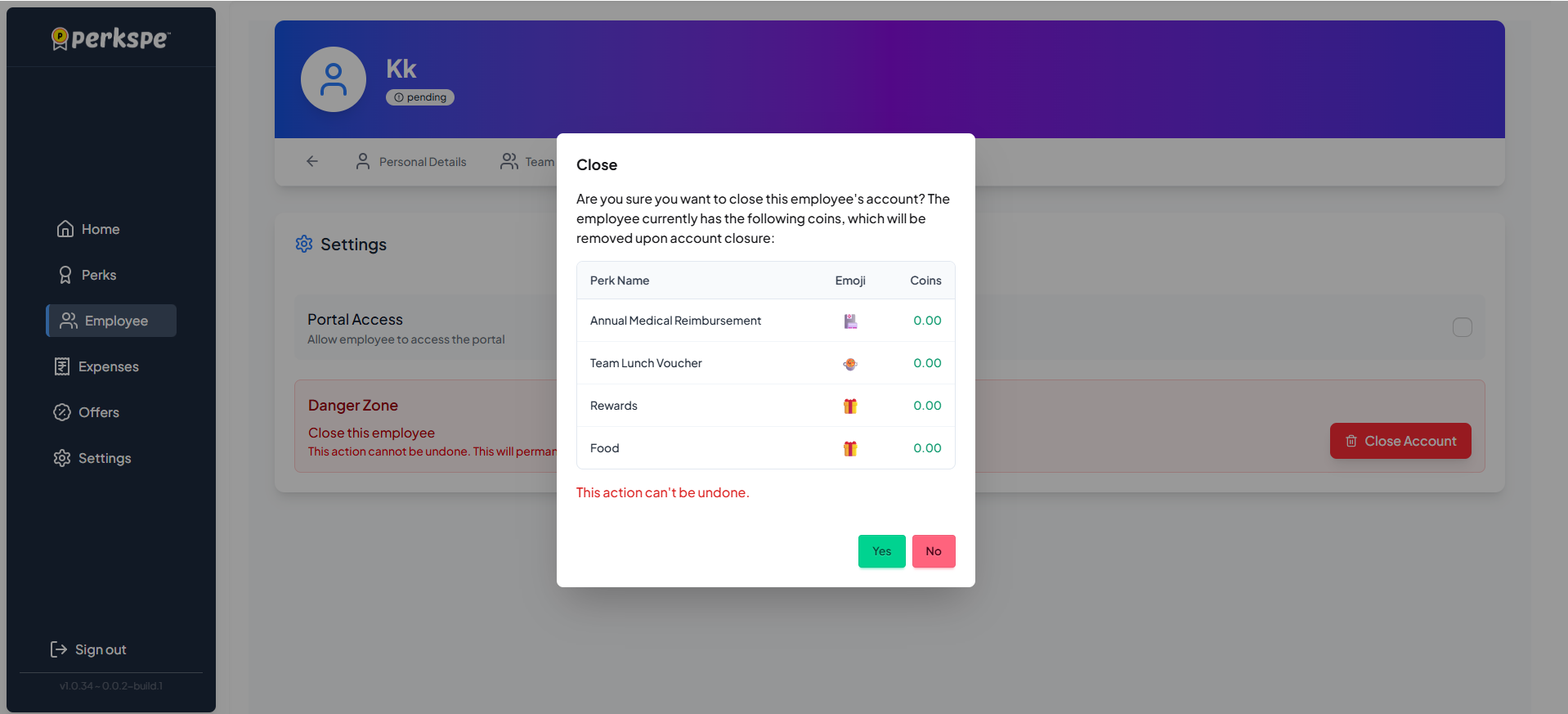
The warning shows:
- "This action cannot be undone"
- "This will permanently close the employee"
- Current PEP Coin balance for each perk (these will be removed)
Click Confirm to proceed.
Step 6: Final Confirmation
A final confirmation popup appears.
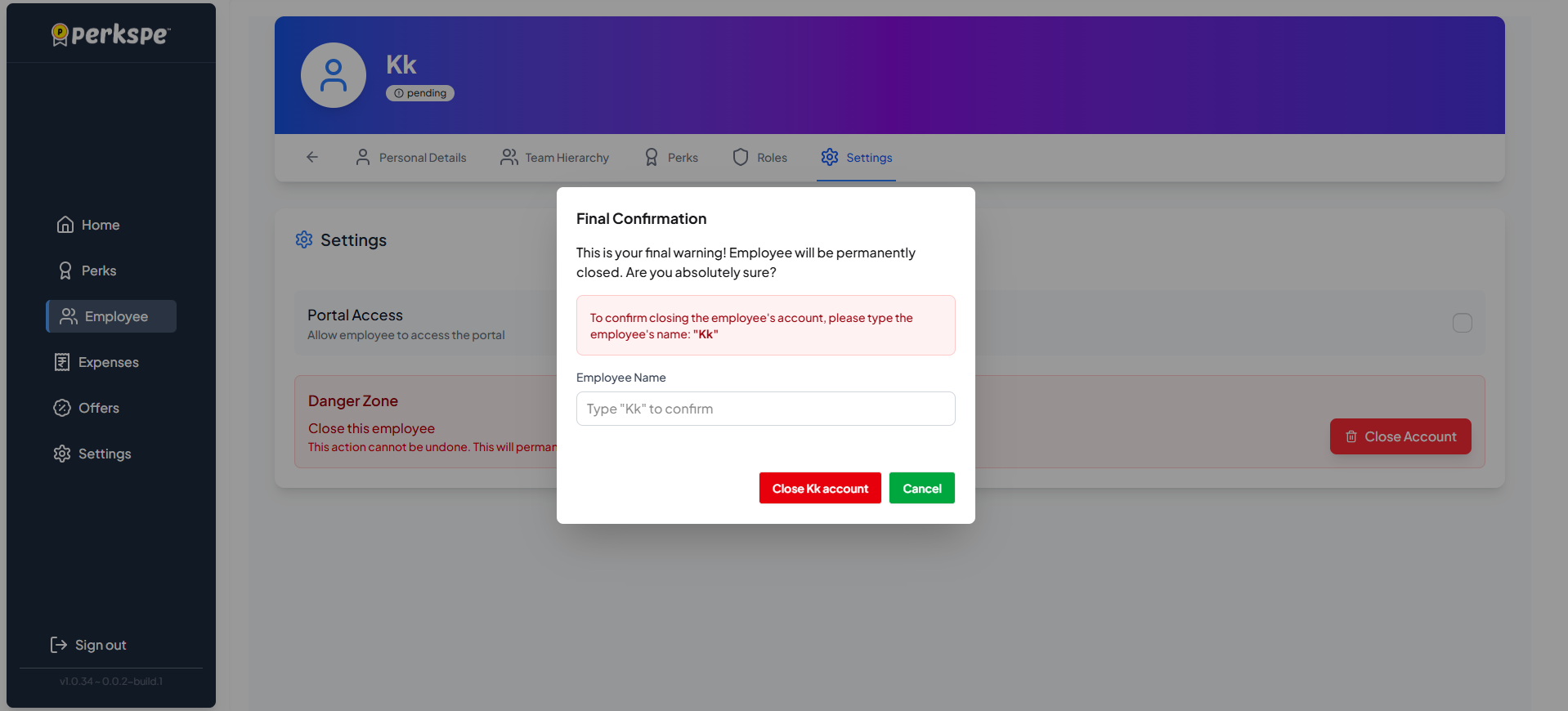
To complete the closure:
- Type the employee's full name in the confirmation field
- Click the Close [Employee Name] account button
After Closing
Once closed, the employee's profile shows:
Status Change
The status in the profile header changes to Closed.
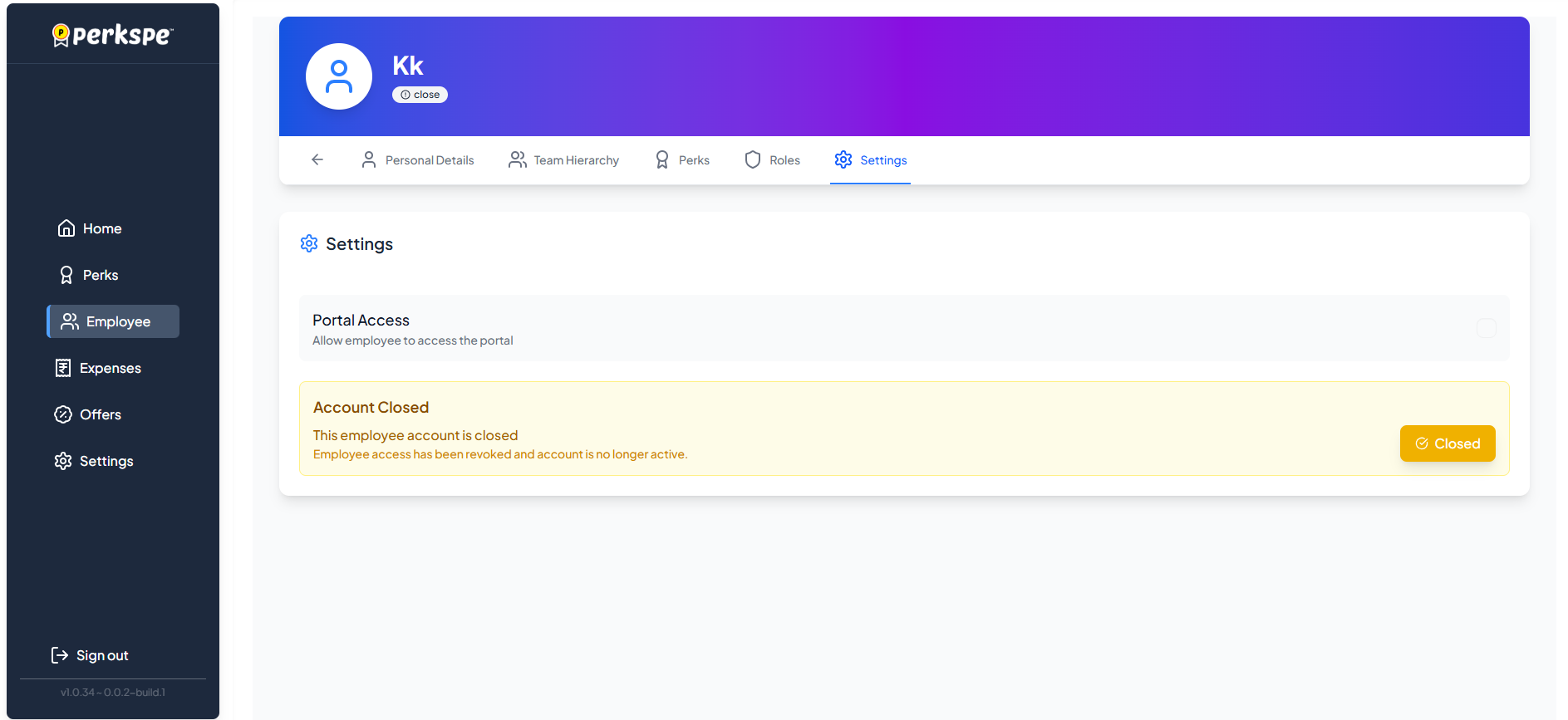
Settings Page
The Settings page displays:
Account Closed
Employee access has been revoked and account is no longer active.
Quick Summary
| Step | Action |
|---|---|
| 1 | Go to Employees → Select employee |
| 2 | Click Settings tab |
| 3 | Find Danger Zone → Click "Close this employee" |
| 4 | Confirm the first warning |
| 5 | Type employee's full name → Click Close button |
If an employee is leaving temporarily (e.g., on leave), consider pausing their perks instead of closing their account.