Admin Expenses
The Admin Expenses page gives administrators a centralized view of all employee expenses across the organization. Admins can review, filter, and manage expenses submitted by all employees from a single dashboard.
How to Access Admin Expenses
From the sidebar, expand Expenses and click Admin Expenses.
Admin Expenses Dashboard
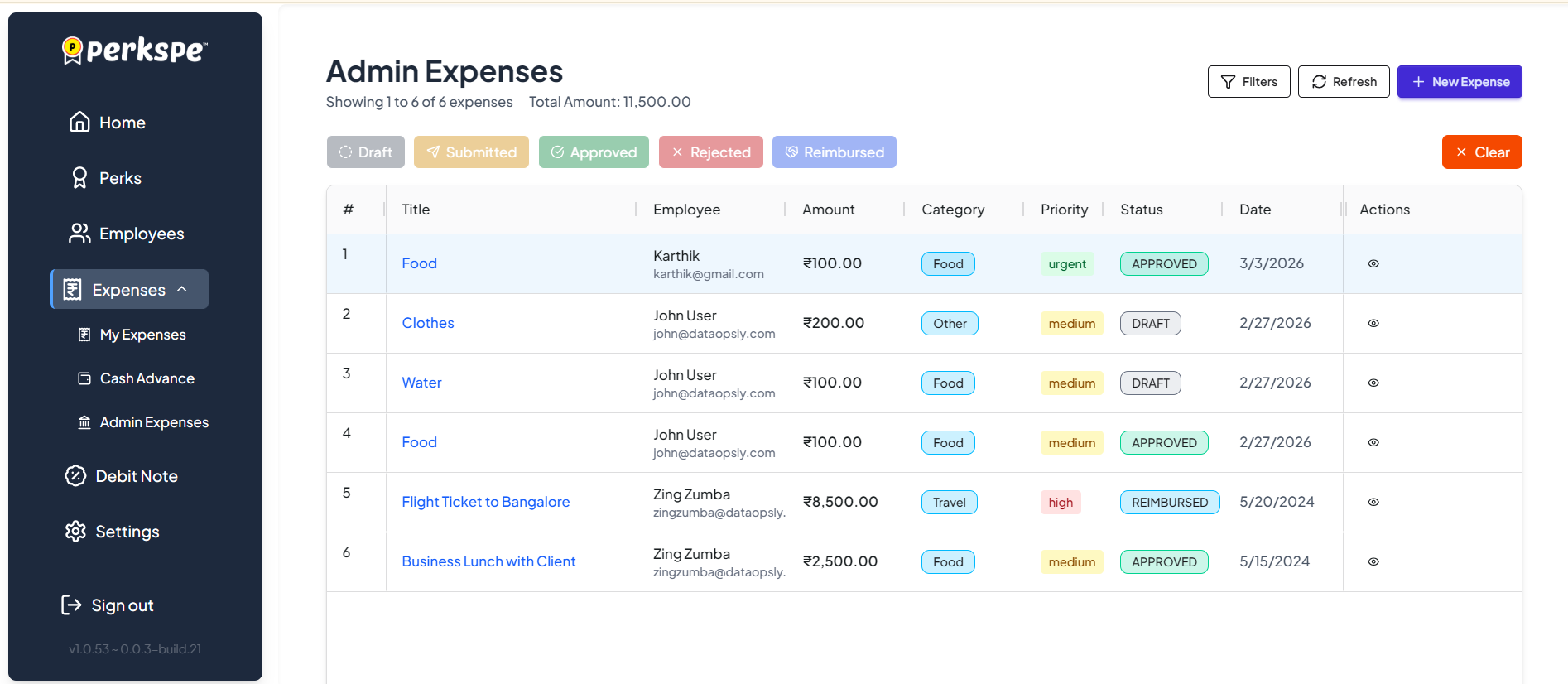
The dashboard displays all employee expenses with the following details:
Expense Table Columns
| Column | Description |
|---|---|
| # | Serial number |
| Title | Name/title of the expense (clickable to view details) |
| Employee | Employee name and email who submitted the expense |
| Amount | Expense amount in ₹ |
| Category | Type of expense (Food, Travel, Other, etc.) |
| Priority | Urgency level (urgent, high, medium, low) |
| Status | Current status of the expense |
| Date | Date the expense was created |
| Actions | View icon (👁) to see full expense details |
Status Filters
Use the status filter chips at the top to quickly filter expenses:
| Status | Color | Description |
|---|---|---|
| Draft | Grey | Saved but not yet submitted |
| Submitted | Orange | Submitted and awaiting review |
| Approved | Green | Expense has been approved |
| Rejected | Red | Expense has been rejected |
| Reimbursed | Purple | Expense has been reimbursed to the employee |
Click any status chip to filter the list. Click ✕ Clear to remove all filters.
Top Action Buttons
| Button | Description |
|---|---|
| Filters | Apply advanced filters to the expense list |
| Refresh | Refresh the list to see the latest data |
| + New Expense | Create a new expense on behalf of an employee |
The page also shows the Total Amount of all displayed expenses at the top.
Creating a New Expense (Admin)
Admins can create expenses on behalf of employees by clicking the + New Expense button.
The process is the same as the standard expense creation flow:
- Fill in basic information — Title, description, category, date, amount, and priority. See Adding a New Expense for full details.
- Add vendor information — Vendor name, details, receipt number, and tax amount.
- Set location — Where the expense occurred.
- Attach receipts — Upload supporting documents (JPG, PNG, PDF).
- Save or Submit — Save as draft or submit for approval. See Draft or Submit for details.
As an admin, you can create and submit expenses for any employee in the organization. This is useful when employees need assistance with expense reporting.
Managing Expenses
Viewing Expense Details
Click the view icon (👁) in the Actions column to see the full details of any expense, including attachments and comments.
Approval Workflow
Admins can approve or reject submitted expenses directly from the Admin Expenses page. For details on the approval process, see Approval.
Adding Comments
Admins can communicate with employees by adding comments on expenses. See Comments for more details.