Close Perk
Sometimes you need to permanently close a perk that is no longer needed. Closing a perk is an irreversible action, so proceed with caution.
Why Close a Perk?
- End of benefit period — the perk program has concluded
- Policy changes — the benefit is no longer offered
- Budget constraints — permanently discontinuing a benefit
- Restructuring — reorganizing the employee benefits program
Closing a perk is permanent and cannot be undone. All associated benefits will be discontinued. If you want to temporarily stop a perk, consider pausing it instead.
How to Close a Perk
Step 1: Go to Perk Settings
Navigate to the perk you want to close and click on the Settings tab.
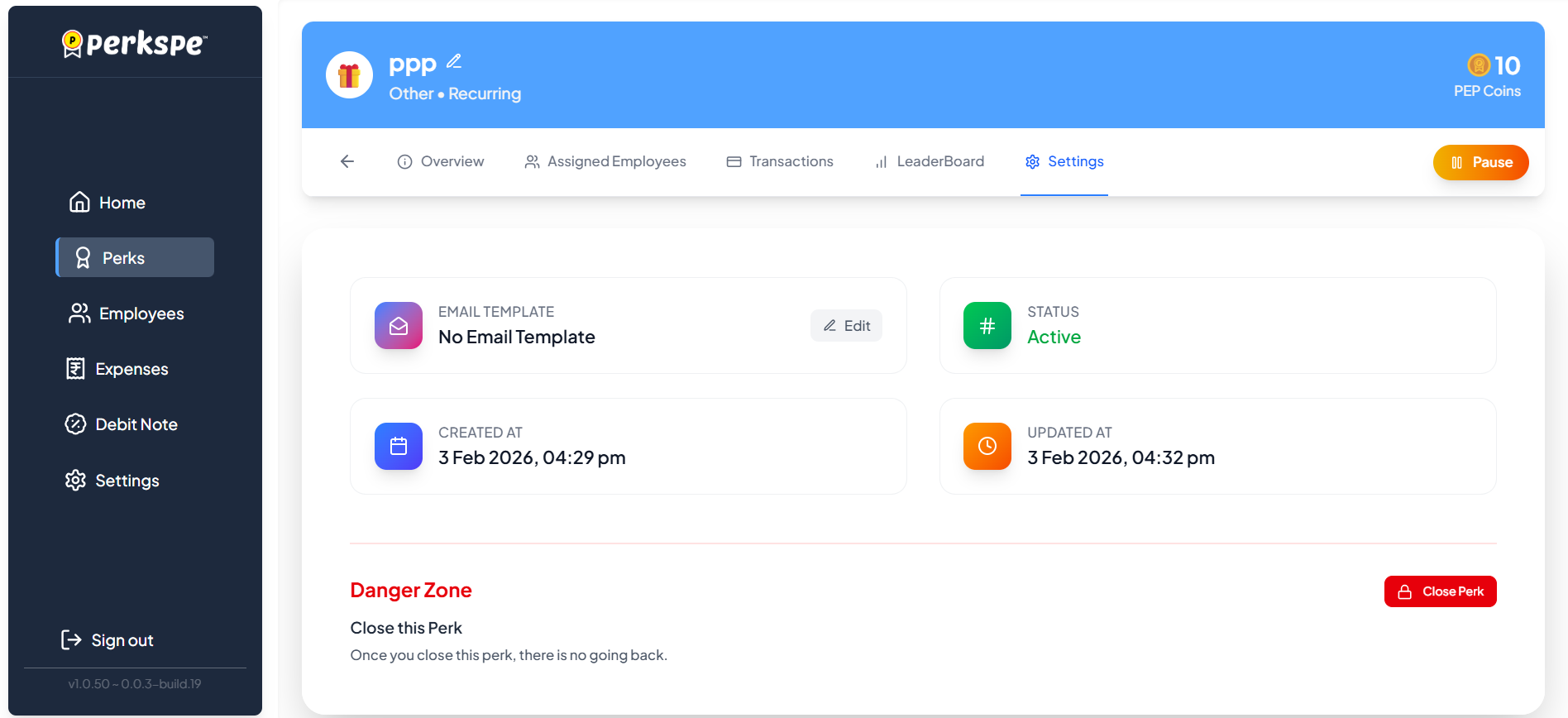
In the Danger Zone section at the bottom, you'll see the "Close this Perk" option with a warning: "Once you close this perk, there is no going back."
Step 2: Click Close Perk
Click the red Close Perk button.
Step 3: Review Assigned Employees
A popup will appear showing all employees currently assigned to this perk:
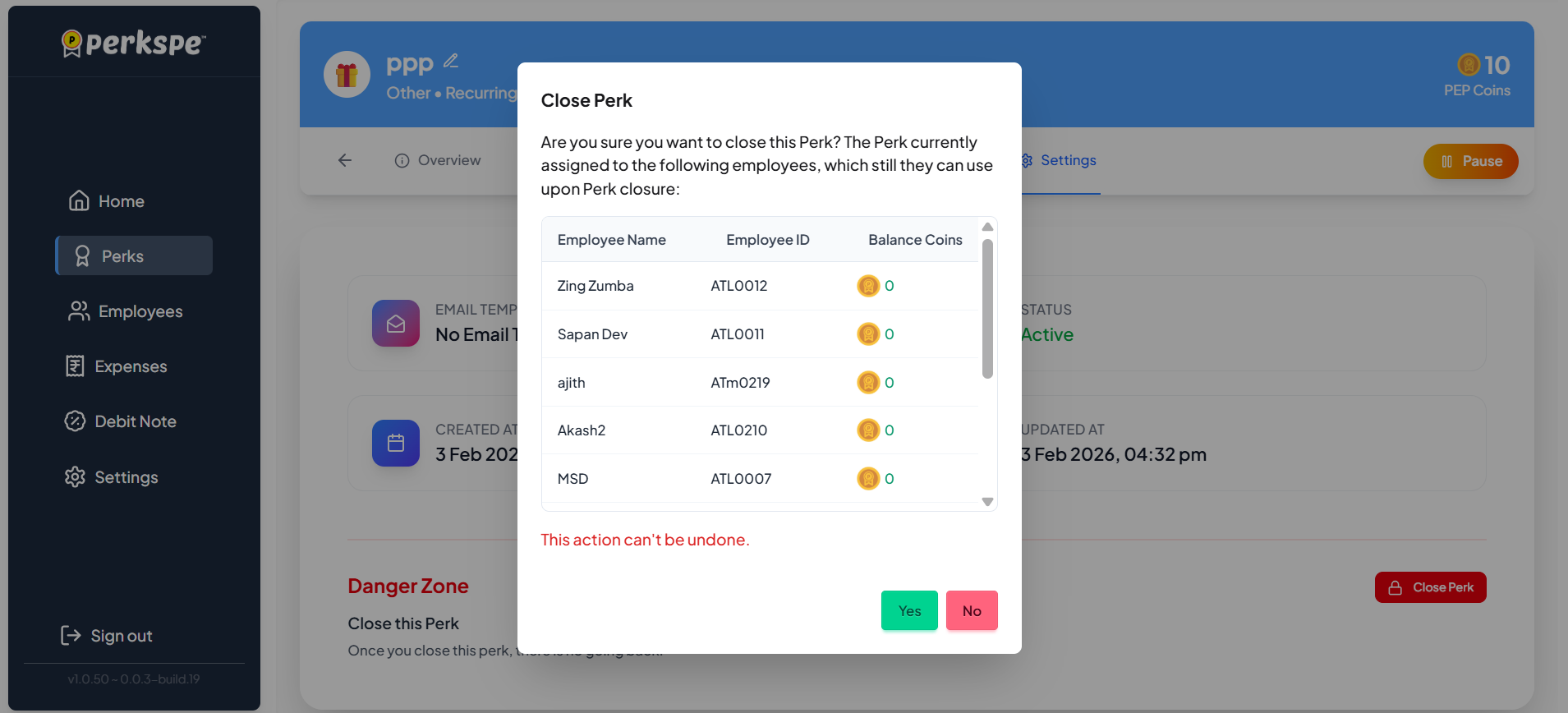
The dialog displays:
- Employee Name — name of the assigned employee
- Employee ID — unique identifier
- Balance Coins — remaining coins the employee has
"This action can't be undone." Review the list carefully before proceeding.
Click Yes to continue or No to cancel.
Step 4: Final Confirmation
A final confirmation dialog appears where you must type the perk name to confirm:
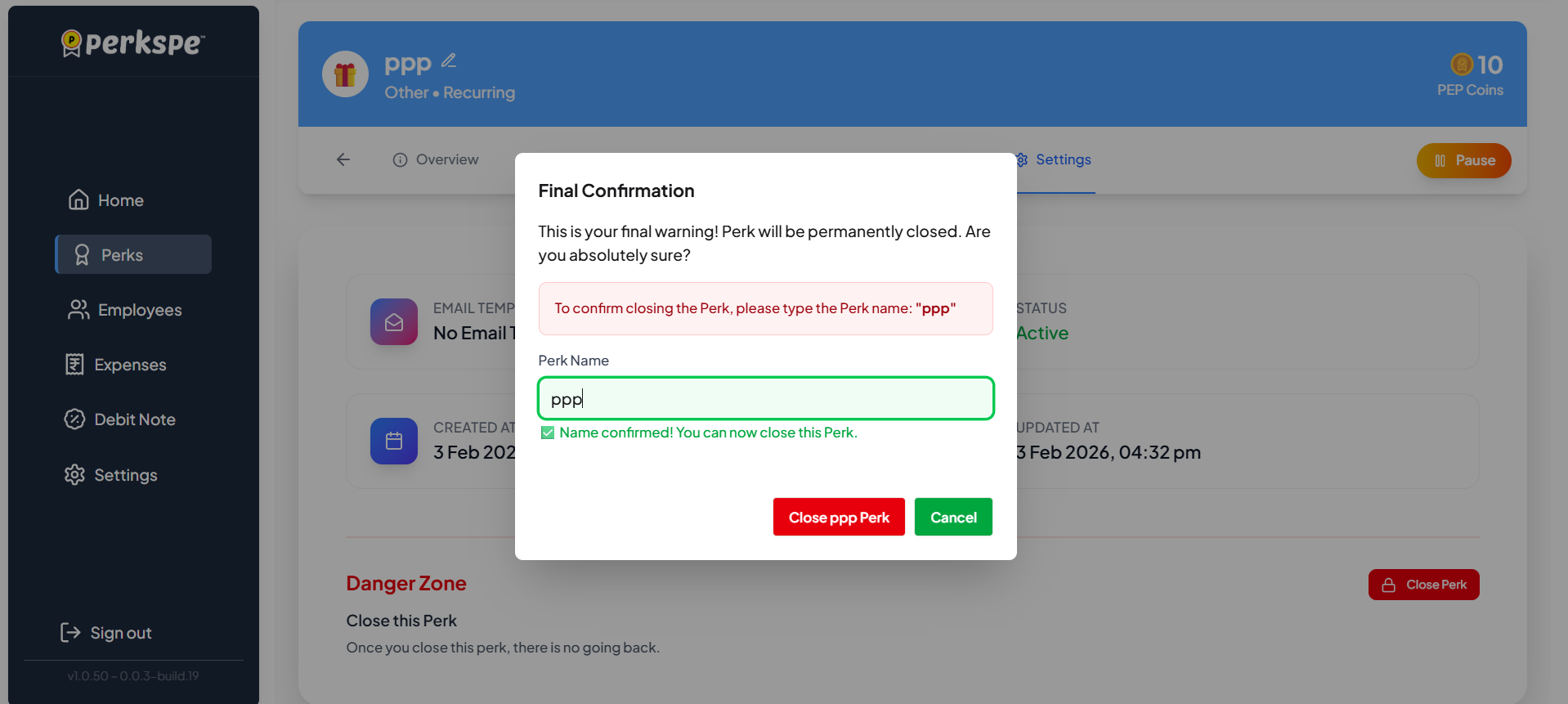
- Read the warning: "This is your final warning! Perk will be permanently closed. Are you absolutely sure?"
- Type the exact perk name in the input field (e.g., "ppp")
- Once the name matches, you'll see a green confirmation: "Name confirmed! You can now close this Perk."
- Click Close [Perk Name] Perk to complete the closure
After Closing
Once closed, the perk will show:
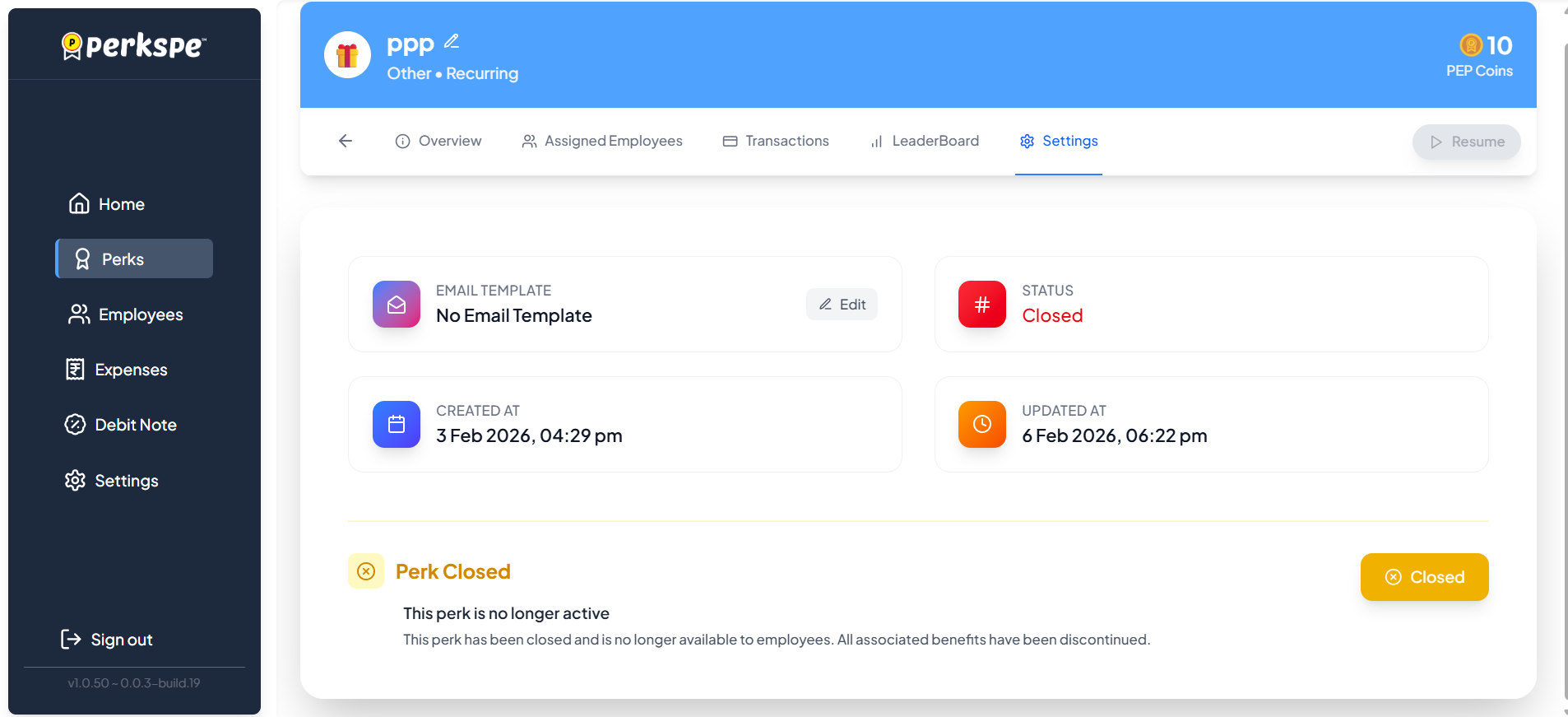
- Status changes from "Active" to Closed
- The Pause button is replaced with a disabled Resume button
- A yellow Perk Closed banner appears with the message:
"This perk is no longer active. This perk has been closed and is no longer available to employees. All associated benefits have been discontinued."
Quick Reference
| Action | Button | Effect |
|---|---|---|
| Close Perk | Red "Close Perk" | Permanently closes the perk |
| Confirmation | Type perk name | Confirms irreversible action |
Important Notes
- Irreversible — Once closed, a perk cannot be reopened
- Employee Impact — All assigned employees will lose access immediately
- Alternative — Consider using Pause for temporary deactivation
- Balance Coins — Review employee coin balances before closing