My Perks
The My Perks section in the PerksPe mobile app allows employees to view, manage, and redeem all the perks assigned to them by their organization. You can browse available perks, check balances, view detailed perk information, redeem perks, and track transaction history — all from one place.
1. My Perks Screen
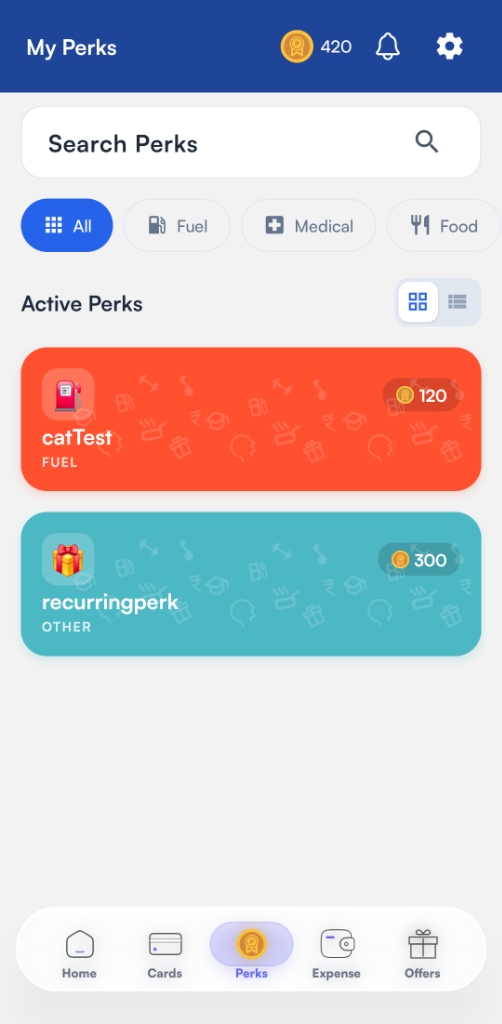
When you tap on the Perks tab from the bottom navigation bar, you are taken to the My Perks screen. This screen displays all your active perks along with useful tools to search and filter them.
Key Elements:
- PEP Coin Balance: Displayed at the top of the screen, showing your total available PEP Coins.
- Search Perks: Use the search bar to quickly find a specific perk by name.
- Category Filters: Filter your perks by category using the tabs — All, Fuel, Medical, Food, and more.
- Active Perks: All your currently active perks are listed under the Active Perks section. Each perk card shows:
- Perk Icon: An icon representing the perk category.
- Perk Name: The name of the perk (e.g., catTest, recurringperk).
- Category Label: The category the perk belongs to (e.g., FUEL, OTHER).
- PEP Coin Value: The available PEP Coin balance for that perk.
Grid View
By default, perks are displayed in a Grid View with colorful perk cards.
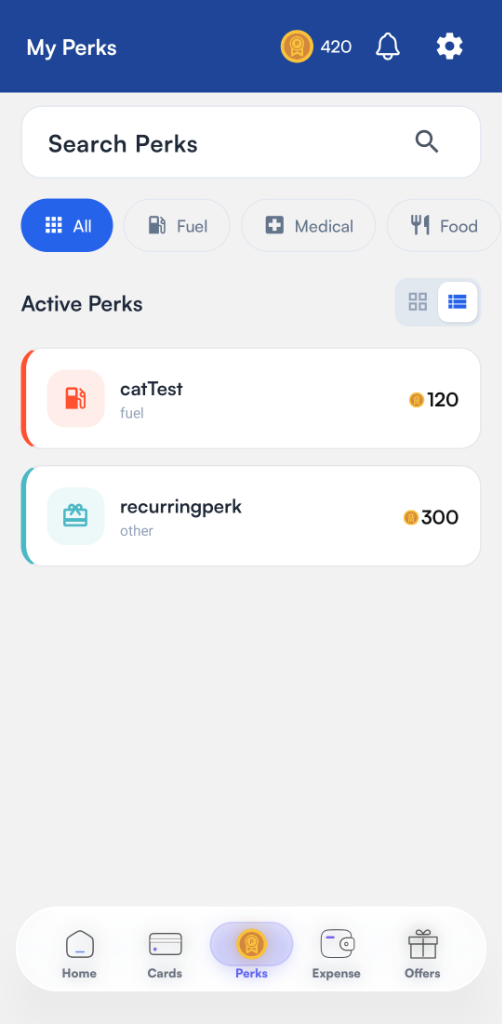
List View
You can switch to a List View by tapping the list icon next to the grid icon. This provides a compact, easy-to-scan layout.
2. Perk Details Bottom Sheet
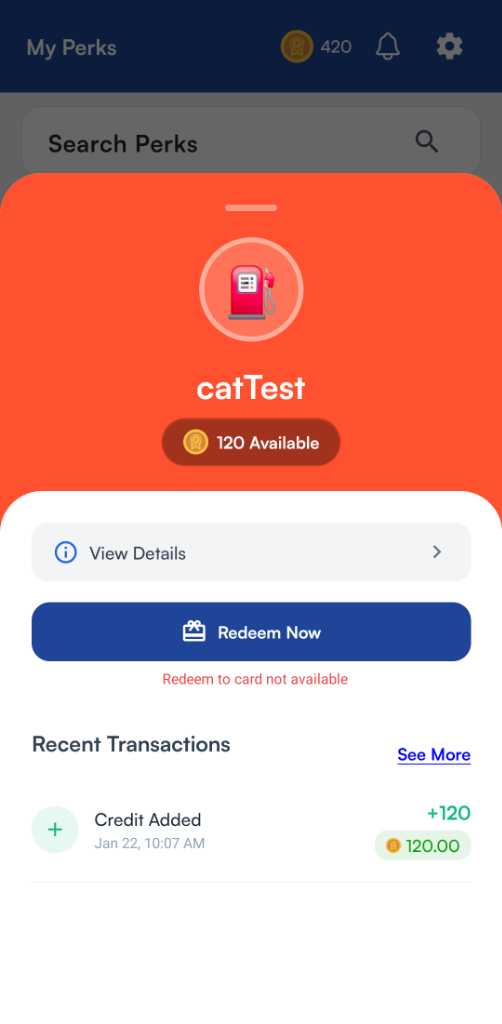
Tapping on any perk card opens a bottom sheet with the perk's details and available actions.
What You See:
- Perk Icon & Name: The perk's icon and name are displayed prominently.
- Available Balance: Shows the total PEP Coins available for this perk (e.g., 120 Available).
- View Details: Tap to open a detailed breakdown of the perk's configuration (see next section).
- Redeem Now: Tap to redeem the perk balance. If redemption to a card is not available, a message — "Redeem to card not available" — will be shown.
- Recent Transactions: A summary of recent transactions for the perk, including:
- Transaction Type: e.g., Credit Added.
- Date & Time: When the transaction occurred.
- Amount: The PEP Coins credited or debited.
3. Perk Details Popup
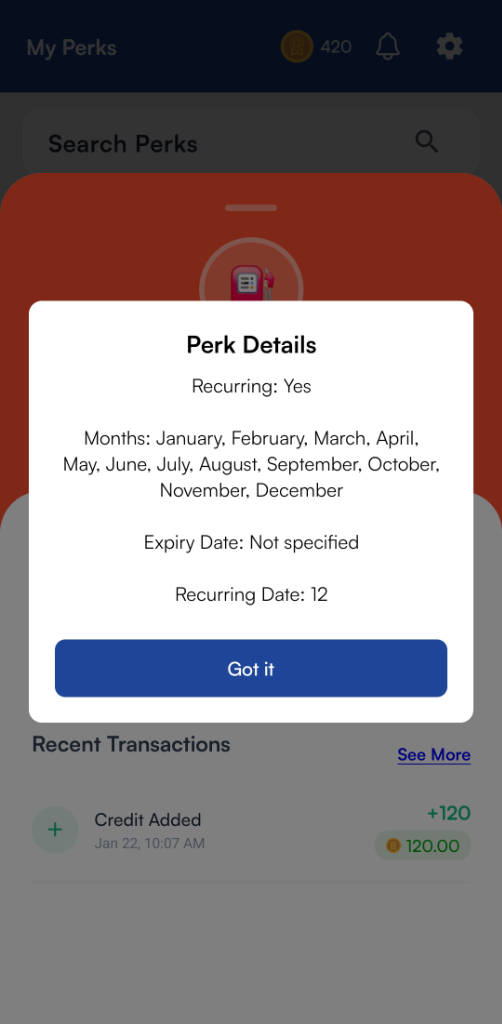
Tapping View Details on the bottom sheet opens a Perk Details popup that provides the complete configuration of the perk.
Information Displayed:
| Field | Description |
|---|---|
| Recurring | Whether the perk is recurring (Yes / No). |
| Months | The months in which the perk is credited (e.g., January through December). |
| Expiry Date | The expiry date for the perk. Displays Not specified if no expiry is set. |
| Recurring Date | The day of the month on which the perk amount is credited (e.g., 12). |
Tap Got it to close the popup.
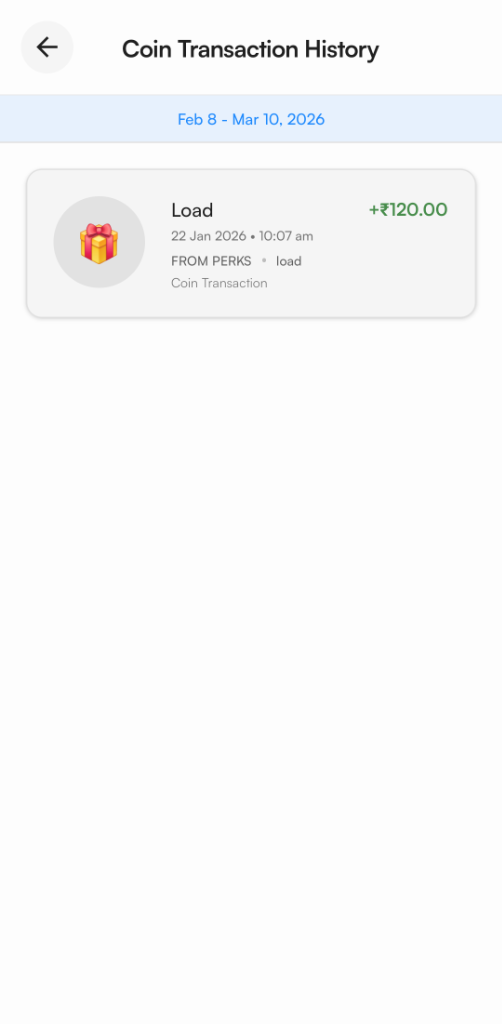
4. Coin Transaction History
To review a full history of PEP Coin transactions related to your perks, navigate to the Coin Transaction History screen.
What You See:
- Date Range Filter: A date range banner at the top (e.g., Feb 8 – Mar 10, 2026) showing the period of displayed transactions.
- Transaction List: Each transaction entry includes:
- Transaction Type: e.g., Load.
- Date & Time: The exact date and time of the transaction (e.g., 22 Jan 2026 • 10:07 am).
- Source: Where the coins came from (e.g., FROM PERKS • load).
- Label: The transaction classification (e.g., Coin Transaction).
- Amount: The amount credited or debited (e.g., +₹120.00).
5. Perk Top-Up Request
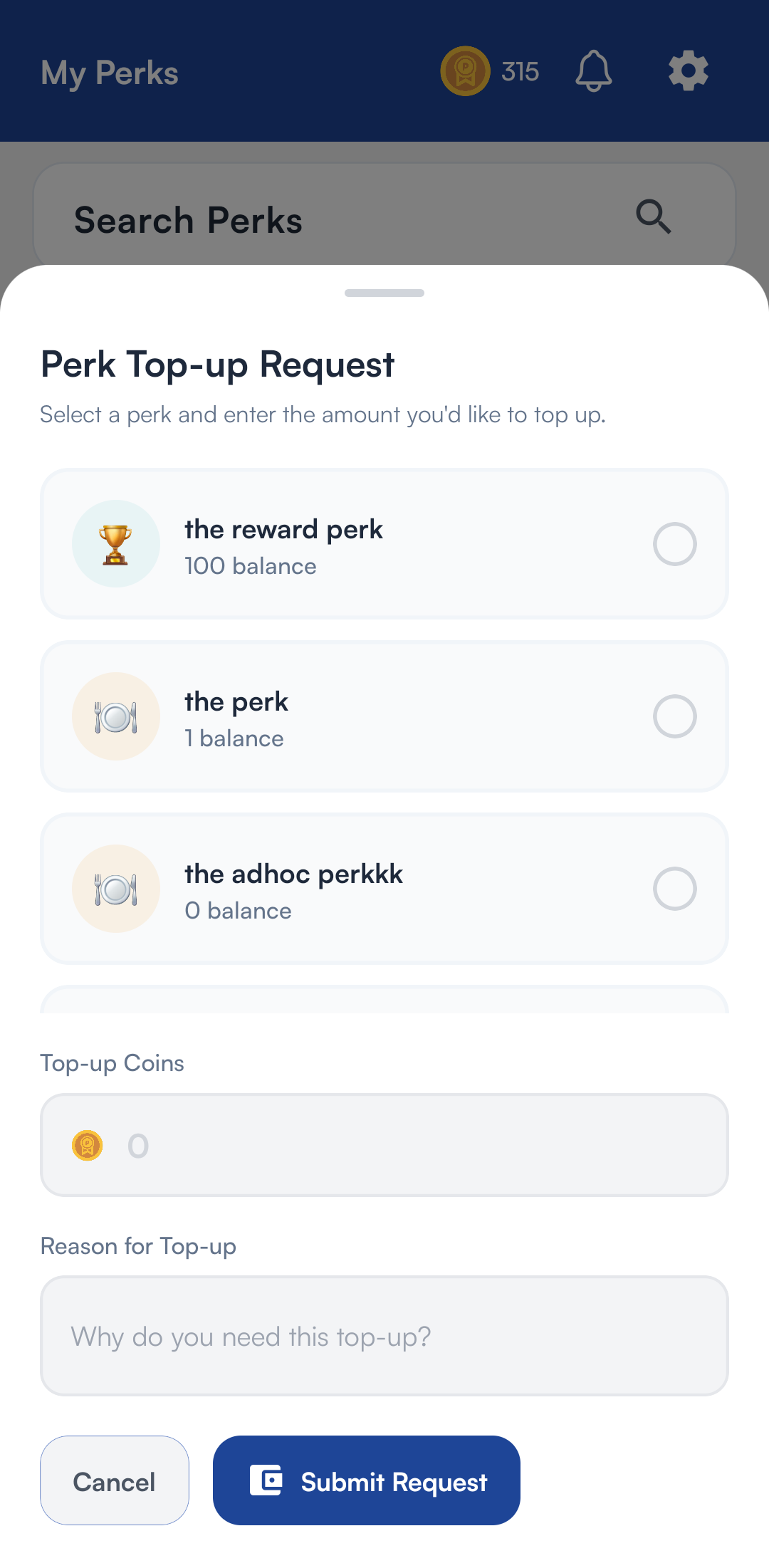
If your available perk balance is insufficient, you can request a top-up directly from the mobile app.
Steps to Request a Top-Up:
-
On the My Perks screen, locate the Top-up request button in the top bar or section layout.
-
Tapping the button opens the Perk Top-up Request bottom sheet.
-
Select the perk you wish to top up (e.g., the reward perk, the perk, or the adhoc perkkk).
-
Enter the amount of Top-up Coins you need.
-
Provide a brief explanation in the Reason for Top-up text field to help your administrator review and approve the request.
-
Tap Submit Request to send the request to your organization, or tap Cancel to discard the changes.
Quick Reference
| Action | Steps |
|---|---|
| View All Perks | Tap Perks tab → Browse the Active Perks section |
| Search a Perk | Use the Search Perks bar at the top |
| Filter by Category | Tap a category filter (e.g., Fuel, Medical, Food) |
| Switch View | Tap the Grid or List icon to toggle views |
| View Perk Details | Tap a perk card → Tap View Details |
| Redeem a Perk | Tap a perk card → Tap Redeem Now |
| View Transactions | Tap a perk card → Scroll to Recent Transactions → Tap See More |
| Request Perk Top-up | Tap Top-up icon/button → Select perk, enter amount and reason → Tap Submit Request |